How To Update BMW Software: OTA, USB And Dealer Guide
To update your BMW’s software, check for a Remote Software Upgrade in your vehicle’s iDrive menu or in the My BMW app, download it, then start the installation while safely parked. The install takes roughly 20 minutes and cannot run while you are driving. Older models without Remote Software Upgrade use a USB update or a dealer visit instead, so the first step is always confirming which method your car supports.
Keeping your BMW’s software up to date is crucial for achieving optimal performance, unlocking enhanced features, and enhancing safety. Regular software updates can improve navigation accuracy, fix system bugs, enhance fuel efficiency, and add new functionality to your vehicle’s infotainment system.
This comprehensive guide will walk you through all available methods for updating your BMW software, whether you prefer to do it yourself at home or visit a dealership.
What a BMW Software Update Actually Changes

A BMW software update is not one single thing. Depending on your model and the package BMW releases, it can touch several separate systems at once:
- iDrive system – Interface enhancements and bug fixes
- Navigation maps – Updated road data and points of interest
- Engine control software – Performance optimizations
- Safety systems – Advanced driver assistance features
- Infotainment – Multimedia and connectivity improvements
Update Frequency: BMW releases updates periodically rather than on a fixed schedule, and availability varies by model, market and region. Checking every 3-6 months is a reasonable habit, but do not assume a missing update means something is broken.
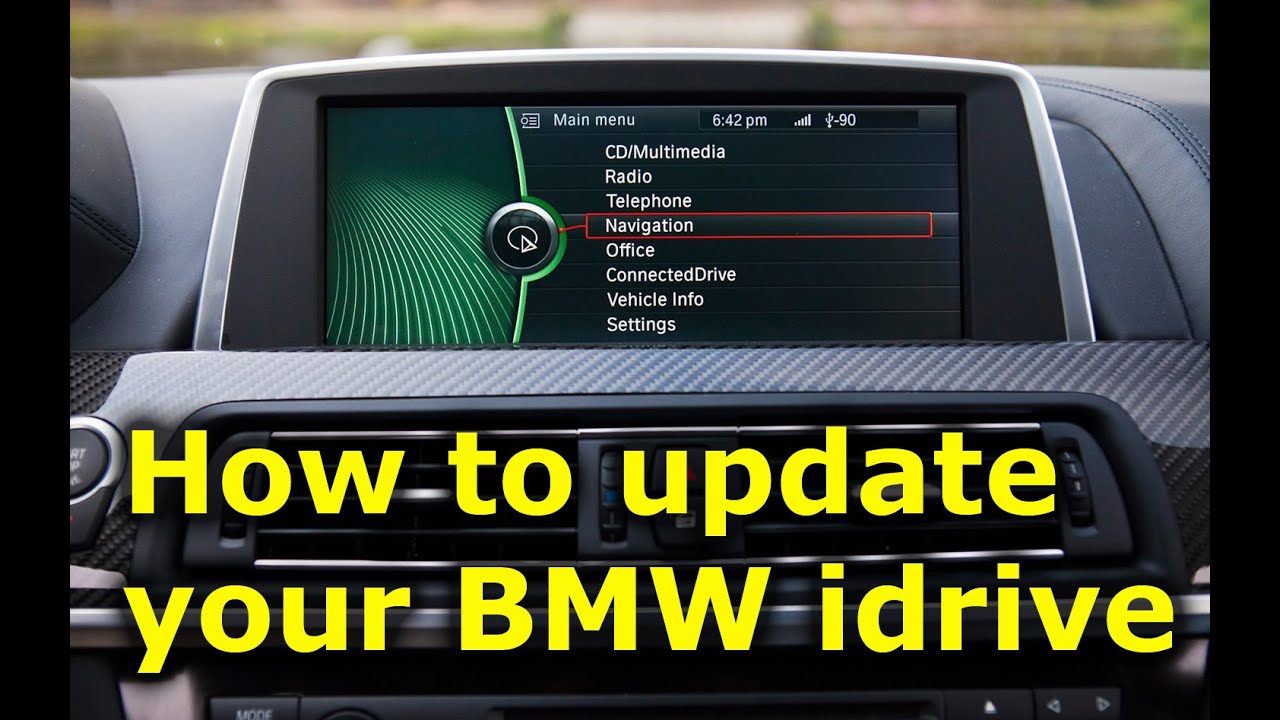
Check Your iDrive Version and Current Software Number

Over-the-Air (OTA) Updates
Remote Software Upgrade (OTA) is wireless and installs directly in the vehicle. It is the default method on most 2020 and newer BMWs, but the exact menu path and available features differ between iDrive generations.
Advantages:
- Convenient – updates install automatically
- No dealership visit required
- Free of charge
- Available for 2020+ models with Remote Software Upgrade capability
iDrive 7 vs 8 vs 8.5 vs 9
Knowing your generation tells you which method applies before you waste time hunting for a menu that is not there:
Advantages:
- iDrive 7 – Remote Software Upgrade available; menus under Settings, then Software Update. Widely fitted to 2019-2023 models.
- iDrive 8 – OTA available with a revised interface; update options sit under the vehicle settings app rather than a standalone menu.
- iDrive 8.5 – OTA available; largely a UI revision of 8, so the update flow is similar.
- iDrive 9 – OTA available on supported models; built on a different software platform, so some older features and app layouts do not carry over.
- Older F-Series and NBT head units – No OTA. Use a USB update or dealer programming.
Dealership Updates
Professional installation by BMW technicians using diagnostic equipment.
Advantages:
What You’ll Need
- USB drive, 32GB or larger, formatted to FAT32
- A computer with a stable internet connection
- Your VIN, from the registration document or the base of the windscreen
- 1-2 hours, plus a battery maintainer if you have one
- Comprehensive system diagnostics
- Professional installation
- Access to all available updates
- Recommended for major system updates
Method 1: Remote Software Upgrade (OTA)

Step-by-Step
- My BMW app is installed (iOS or Android)
- Active BMW ConnectedDrive account
- Vehicle with Remote Software Upgrade capability
- Stable Wi-Fi or cellular connection
- Vehicle parked safely
Step-by-Step Instructions
Step 1: Download and Set Up the App
- Download “My BMW” from the App Store or Google Play
- Create an account or log in with existing credentials
- Add your vehicle using the VIN (found on registration or dashboard)
Step 2: Check for Available Updates
- Open the My BMW app and select your vehicle, or use the vehicle’s own menu: Settings, then Software Update.
- The system runs a compatibility check against your VIN and shows any update available for your car.
- If an update is offered, start the download. The vehicle needs a stable connection, and the app can complete the download in the background.
- Park safely, switch the vehicle off, and confirm the install prompt. Installation takes roughly 20-45 minutes.
- Do not open doors, start the engine, or interrupt power during installation.
Step 3: Install the Update
- If updates are available, tap “Download”
- Ensure your vehicle is parked and turned off
- The download will begin (requires a stable connection)
- Once downloaded, tap “Install”
- The installation process takes 20-45 minutes
- Do not start the vehicle during installation
Step 4: Verify Installation
- Start the vehicle and open Settings, then Software Information.
- Note the software version number and compare it with the number shown before you started.
- If the number is unchanged, the update did not complete – see the troubleshooting section below.
Why It Fails and Fixes
IssueSolutionApp won't connect to vehicleEnsure Bluetooth is enabled on your phone; restart both app and phoneDownload failsSwitch to a stronger Wi-Fi network; ensure 4G/5G connection is stableInstallation interruptedRestart the vehicle and attempt installation againUpdate not showingForce refresh by pulling down on the app screen; check vehicle compatibilityBattery low warningCharge vehicle battery or let engine idle during update
Method 2: Update Using USB Drive

What You’ll Need
- USB drive (minimum 32GB recommended)
- Computer with internet access
- 1-2 hours for download and installation
- Vehicle VIN
Step-by-Step Instructions
Step 1: Prepare Your USB Drive
- Insert the USB drive into your computer
- Format the drive to the FAT32 file system
- Windows: Right-click drive → Format → Select FAT32
- Mac: Disk Utility → Erase → Select MS-DOS (FAT)
- Create a folder named “BMW” in the root directory
- Ensure the drive is empty except for this folder
Step 2: Download Software Update
- Go to the official BMW software update portal and enter your VIN.
- The portal returns only the packages that match your vehicle – if nothing is listed, no USB update is available for your VIN.
- Download the package. Sizes vary widely, and map packages in particular can run into double-digit gigabytes.
Step 3: Transfer Files to USB
- Unzip the downloaded file if compressed
- Copy all contents into the “BMW” folder on your USB drive
- Safely eject the USB drive from the computer
Step 4: Install the Update in the Vehicle
- Start the vehicle and keep the engine running, or connect a charger so the battery stays supported.
- Insert the USB drive into the vehicle’s data-capable USB port, usually in the centre console or glovebox.
- On iDrive, go to Menu, Settings, Software Update, then select Update from USB.
- The head unit performs a software handshake with the files and verifies them before offering Install.
- Confirm Install. Depending on the package, this can take 30-60 minutes.
- Do not remove the drive or cut power until the system tells you it is finished.
Step 5: Completion
- The system will restart automatically when complete
- Remove the USB drive when prompted
- Verify installation: Settings → Software Information
Important USB Update Tips
- Keep the engine running or the battery on a maintainer throughout – a voltage drop mid-write is the most common cause of a bricked head unit.
- Use a quality USB drive formatted to FAT32, and avoid drives with built-in encryption or partitioning.
- Do not remove the USB drive during installation.
- Note your radio presets, driver profiles and phone pairings first – some updates reset them.
- If the drive is not recognised, try the other USB port before assuming the files are wrong.
Method 3: Navigation Map Updates
When to Choose Dealership Updates
- Your vehicle is under warranty
- Major system updates are available
- You’re experiencing technical issues
- Your model doesn’t support OTA or USB updates
- You prefer professional installation
What to Expect
Scheduling Your Appointment
- Call your local BMW dealership service department
- Mention that you need a software update
- Provide your VIN
- Schedule appointment (typically 1-2 hours)
During the visit the technician connects the car to BMW’s diagnostic system, reads the current integration level, and programs the target software across the relevant control units. This is the same process whether you booked it for a fault or simply asked for the latest software. You will usually be told to leave the car rather than wait.
During Your Visit
StageDurationWhat HappensInitial Diagnostic15-20 minTechnician connects vehicle to BMW diagnostic systemSoftware Download20-40 minLatest updates are downloaded to vehicleInstallation30-60 minUpdates are installed and verifiedFinal Check15-20 minSystem testing and quality verification
Cost Considerations
- Under warranty: usually covered, particularly if the update relates to a fault or campaign.
- Out of warranty: expect a labour charge, since I-Level programming ties up a bay and diagnostic equipment for an hour or more. Ask for the quote before booking.
- Some updates are complimentary as part of recalls or safety campaigns.
- Map updates are often handled separately from vehicle software and may be included with a ConnectedDrive map subscription.
Method 4: Dealer I-Level Programming

Update Fails to Install
Possible Causes:
- Insufficient battery charge
- Corrupted download files
- Incompatible software version
- System error in the vehicle
Solutions:
- Before updating, open Settings, then Software Information, and photograph the version number.
- After the install completes, return to the same screen and compare.
- For a dealer I-Level update, ask for the before and after integration level on the invoice.
- If the number is identical, the update did not apply – do not assume it worked because the car restarted.
No Updates Available
Check the Following:
- Your vehicle may already be on the latest software for its build.
- Some models and regions receive updates far less often than others.
- Map updates in particular are released per region – a package available in one market may never appear in another.
- Confirm your vehicle actually supports Remote Software Upgrade, and that ConnectedDrive services are active.
- Updates can also be withdrawn from BMW servers temporarily if a problem is found, so a package that appeared last month may vanish.
Installation Stuck or Frozen
What to Do:
- Wait at least 20 minutes (updates can appear frozen)
- Do not interrupt power to the vehicle
- If truly frozen after 2 hours, contact BMW Roadside Assistance
- Do not attempt to restart the vehicle forcibly
USB Not Recognized
Solutions:
- Verify USB is formatted as FAT32
- Try a different USB port in the vehicle
- Ensure files are in the correct folder structure
- Use a different USB drive (some brands work better)
- USB drive should be USB 2.0 or 3.0 compatible
Post-Update Fixes: CarPlay, Profiles, Settings

Regular Check Schedule
- Monthly: Check for critical security updates via the My BMW app
- Quarterly: Review available feature updates
- Annually: Consider dealership diagnostic and update check
Enable Automatic Notifications
- Open My BMW app
- Go to Settings → Notifications
- Enable “Software Update Alerts”
- You’ll receive push notifications when updates are available
Keep Your Vehicle Connected
- Maintain an active BMW ConnectedDrive subscription
- Keep the vehicle connected to Wi-Fi when parked at home (for automatic OTA updates)
- Ensure app permissions are enabled
Back Up Your Settings
Before major updates, note down:
- Radio presets
- Navigation favorites
- Personal comfort settings
- Phone Bluetooth pairings
FAQ
u003cstrongu003eHow do I check my current BMW software version?u003c/strongu003e
Navigate to iDrive Menu → Settings → Software Information. Your current version number will be displayed here.
u003cstrongu003eCan I drive during a software update?u003c/strongu003e
No. Never drive during an update installation. The vehicle must be parked safely with the engine running or in accessory mode.
u003cstrongu003eWill updating reset my personal settings?u003c/strongu003e
Minor updates typically preserve settings. Major updates may reset some preferences. It’s recommended to note your settings before updating.
u003cstrongu003eHow long does a BMW software update take?u003c/strongu003e
OTA updates: 20-45 minutesu003cbru003eUSB updates: 30-60 minutesu003cbru003eDealership updates: 1-2 hours, including diagnostics
u003cstrongu003eIs the BMW software update free?u003c/strongu003e
OTA and USB updates are free. Dealership updates are free under warranty, but may incur a service fee ($150-$300) if out of warranty.
u003cstrongu003eWhat happens if my battery dies during an update?u003c/strongu003e
This can cause serious system issues. Always ensure your battery is fully charged (above 50%) and the engine is running during updates. If power is lost, contact BMW Roadside Assistance immediately.
u003cstrongu003eDo I need an active ConnectedDrive subscription?u003c/strongu003e
For OTA updates via the My BMW app, yes. For USB updates, no subscription is needed.
u003cstrongu003eCan I update an older BMW model?u003c/strongu003e
Most BMW models from 2012 onwards support software updates. Check your owner’s manual or contact your dealership to confirm compatibility.
Risks, Warranty, and When to Skip Updating
Most updates are low risk, but the failure mode is worth understanding before you start. An interrupted install – flat battery, pulled USB drive, power cut – can leave a control unit in an unusable state, and recovering it usually means a dealer visit and possibly a replacement head unit. That risk is why the battery condition matters more than almost anything else in this guide.
On warranty: a software update performed through BMW’s own channels does not void your warranty. Problems caused by a failed DIY USB install, or by coding changes made outside BMW’s tools, are a different matter and can be declined as consequential damage. If your car is under warranty and an update is available, the dealer route removes the argument entirely.
For the most up-to-date information specific to your vehicle model, always refer to your owner’s manual or visit your local BMW dealership.
Related posts:
 ZF 8HP Transmission Problems: Variants, Costs & Fixes
 Which BMW Has 3 Rows? X7, iX, and X5 Explained
 BMW Stalls When Stopping: Causes, Codes, Costs & Fixes
 BMW Garage Door Opener: HomeLink Programming & Fixes
 What BMW Has the B58 Engine? Full Model List, Years, and Outputs
 BMW Restraint System Malfunction: Causes, Codes & Fixes
 How To Decode BMW VIN: Step-by-Step Guide With Examples
 How To Check BMW Transmission Fluid Level (Dipstick & Sealed)
 How To Connect To BMW WiFi: Step-By-Step Guide (2025)
 Bmw Leaking Coolant But Not Overheating: Causes & Fixes
 BMW Limp Mode: Causes, OBD-II Codes & Fixes Explained
 F150 Jump Seat Console Organizer: Fitment Chart & Top Picks