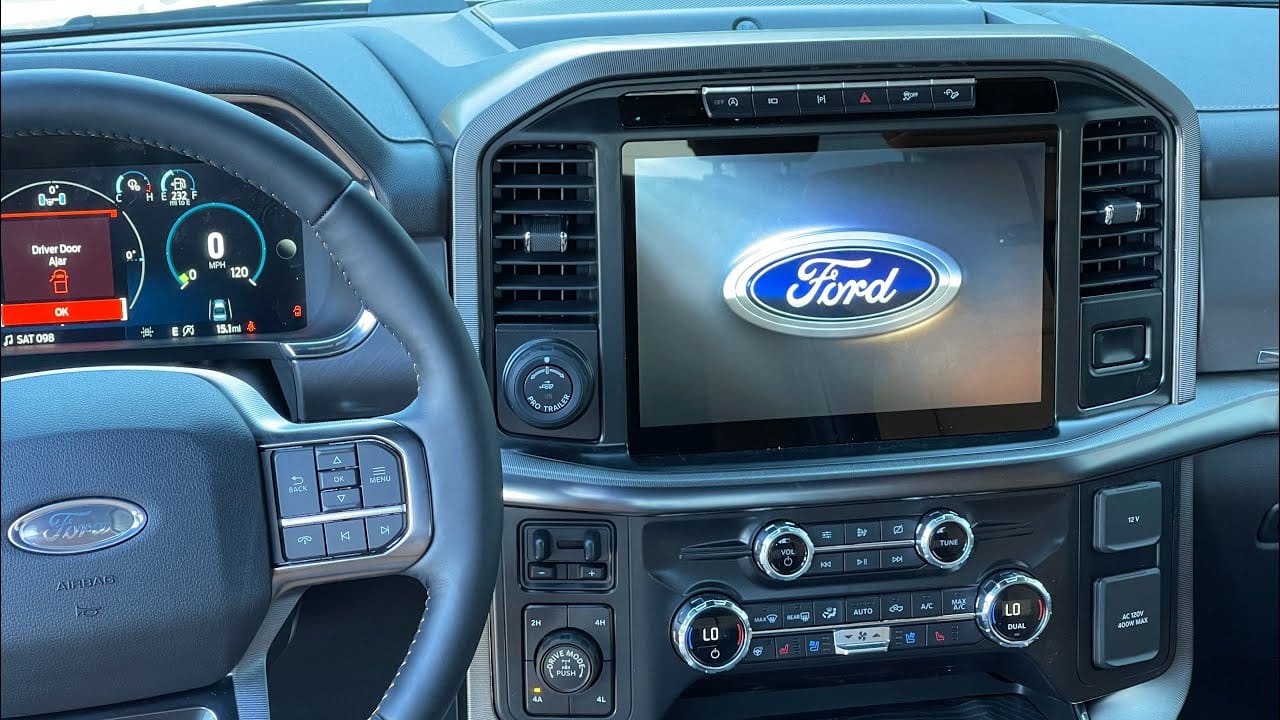
How to Change The Ford F150 SYNC 4 Startup Screen
To change the Ford F150 SYNC 4 startup screen, you’ll need to access the hidden diagnostic menu and adjust the theme settings. This involves a specific button sequence to enter diagnostic mode, followed by navigation to the theme options. You can then select a different theme, which will change the startup screen.
If you’ve ever wondered how to change the startup screen on your Ford F150 Sync 4, you’re in the right place. This guide is all about helping you personalize your driving experience, giving your vehicle that unique touch that sets it apart from the rest.
You’ll discover just how simple it can be to transform your screen and make it your own. Dive in, and let’s unlock the secrets to customizing your Ford’s startup screen, making every drive feel special from the very start.
Key Steps
- Start the Truck and Turn On SYNC 4 System
- Tap on “Settings” from the Home Screen
- Select “Display” or “Personalization”
- Choose “Startup Screen” or “Welcome Screen”
- Browse Available Themes or Upload Custom Image (if supported)
- Select Preferred Startup Screen
- Save and Confirm Changes
- Restart the Truck to See the New Startup Screen

What Is The Ford F150 Sync 4
The Ford F150 Sync 4 is a smart system for your truck. It lets you control music, calls, and maps. The screen is touch-sensitive and easy to use. You can connect your phone with Bluetooth. This helps you make hands-free calls. It makes driving safer. The Sync 4 also updates over the air. This means it gets better with time.
The screen shows clear graphics. You can see maps better. The system listens to your voice commands. You can say, “Call Mom,” and it will dial her number. This makes it a smart helper while you drive. The Sync 4 is a big part of the Ford F150 experience.
Benefits Of Customizing The Startup Screen
Customizing your Ford F150’s startup screen can be fun. It adds a personal touch to your vehicle. You can choose colors that you love. You can add images that make you happy. It feels special and unique. It becomes your car, not just any car.
Changing the screen is easy. You can find instructions online. Many people share their ideas. You can learn how they do it. It’s a great way to learn new skills. You can enjoy creating something new.
Your screen will be different from others. It can show your style. It can show what you like. It makes driving more fun. You can impress your friends. They will see your cool screen.
Tools Needed For Customization

Changing the Ford F150 Sync 4 startup screen is easy. You need a few tools. First, get a USB flash drive. It must be empty. Next, have a computer with internet. You’ll need it to download files. A stable internet connection is important. It ensures fast downloads. Also, have a car charger. It keeps your car battery charged during changes.
Don’t forget a software tool. It helps in customizing. Find one that is safe and reliable. Lastly, patience is key. Take your time. Follow steps carefully. Make sure each tool is ready before starting. With these tools, you are set for customization.
Preparing For The Change
Changing the Ford F150 Sync 4 startup screen adds a personalized touch to your driving experience. Access settings, select display options, and customize the startup screen to reflect your style. Enjoy a unique interface each time you start your vehicle.
Backup Original Settings
It’s smart to save your current settings. This way, you won’t lose anything. Use a USB drive for this. Plug it into the car. Copy your settings to the USB. This helps if you need them later. Always have a backup.
Check Software Compatibility
Before changing the screen, check if your car’s software can handle it. Not all screens work on all cars. Find the software version in your car’s menu. Compare it with the new screen’s requirements. It’s important to ensure compatibility. This avoids problems later.
Accessing The Sync 4 System
Start your Ford F150 and keep it running. Press the volume button and the seek button together. Hold them for about 5 seconds. The screen will change. You will enter developer mode. This mode lets you see hidden settings. Be careful with these settings. Changing them may affect your car’s system.
Once in developer mode, look for the settings menu. It may be under a different tab. Use the touchscreen to move through options. Find the startup screen setting. Change it as you like. Choose a picture or theme that suits you. Save your changes. Restart the system to see your new screen.
Choosing A New Startup Screen
The Ford F150 Sync 4 has cool screens to choose from. Use the settings menu to see them all. Pick the one you like best. It’s simple and fun. Each screen has a unique look. This changes the start-up vibe. Try different ones to find your favorite.
Want a personal touch on your screen? Upload your own image. First, save your picture to a USB drive. Then, plug it into your car. Go to the screen settings. Choose to add a custom image. Follow the steps to set it up. Enjoy your unique start screen every time!

Applying The New Startup Screen
- Choose a screen that you like. Use the menu options to make changes.
- Tap “Save” when you finish.
- Check if the new screen is set.
- If not, repeat the steps.
- Make sure settings are correct.
- Customize features if needed.
- Adjust brightness for better view.
- Press “Save” to keep changes.
- Double-check settings before saving.
- Confirm that the new screen appears.
- This ensures changes are saved.
- Settings must be accurate.
- Incorrect settings cause problems.
- Turn off the car to restart.
- Restart system after saving changes.
- Check if new screen shows up.
- If it does not, try again.
- Restarting helps the system update.
- Makes sure changes are applied.
Troubleshooting Common Issues
Changing the Ford F150 Sync 4 startup screen can sometimes encounter common issues. Ensure your software is updated. Also, check for proper connection to avoid glitches.
Resetting To Default
Sometimes, the Ford F150 Sync 4 startup screen shows errors. Resetting to default can fix this. First, go to the settings menu. Find the “System” option. Click on “Reset” and select “Factory Reset”. This will restore the screen to its original state. Be sure to backup important data before doing this. The reset deletes everything stored. This step often solves many screen problems. It gives a fresh start to the system. Remember, resetting can take a few minutes. So, be patient while the system processes the reset.
Resolving Image Errors
Image errors can be frustrating on your Ford F150 Sync 4 screen. Check the image format first. The system supports specific formats like JPEG and PNG. If the format is wrong, it won’t display correctly. Also, ensure the image size is not too large. Large images slow down the system. The image must be clear and properly saved. If the image still doesn’t show, consider updating the system. Updates often fix display issues. A software update might solve image problems quickly. Keep the system updated for best performance.
Maintaining Your Custom Settings
Keep your Ford F150’s startup screen fresh. Regular updates are key. Sync 4 offers new features often. Install these updates to stay current. Updates fix bugs and improve performance.
Check for updates monthly. Connect to Wi-Fi for easier downloads. This way, your settings remain optimal.
Regular Updates
Updating ensures smooth operation. Your screen will run faster. It might even save you time. Missed updates can lead to glitches. These could affect your custom settings.
Ford provides updates on their website. Make sure you download them. Follow the instructions carefully. This keeps your system in top shape.
Monitoring System Performance
Watch how your system performs. Notice any unusual behavior? It could mean an update is needed. Slow response times are a sign. Frequent crashes might indicate a problem. Regular checks help avoid bigger issues.
Simple fixes can prevent headaches. Keep an eye on your system. This helps maintain your custom settings.

Frequently Asked Questions
How Do I Change The Ford F150 Startup Screen?
To change the Ford F150 startup screen on Sync 4, navigate to Settings. Select Display, then Startup Screen, and choose your preferred option. Customization options may vary based on software updates. Always ensure your Sync 4 system is up-to-date for optimal functionality.
Can I Customize Sync 4 Startup Images?
Yes, customizing startup images on Sync 4 is possible. Access the Display settings and select Startup Screen. Follow the prompts to upload your image. Ensure the image format is compatible. Regularly update your Sync 4 system to access new customization features.
Is It Safe To Modify Sync 4 Settings?
Modifying Sync 4 settings is safe when following the manual guidelines. Make sure your system is updated and backed up. Avoid unauthorized software changes. Consult your Ford dealer if uncertain about any modifications. Proper adjustments enhance your driving experience without compromising safety.
Does Changing The Screen Affect Performance?
Changing the startup screen does not affect Sync 4 performance. It’s purely aesthetic and designed for user preference. Maintain regular software updates to ensure optimal system performance. If experiencing issues, consult the manual or contact Ford support for assistance.
Conclusion
Changing your Ford F150 Sync 4 startup screen is simple. Follow the steps outlined for a smooth process. Customize your screen to reflect your style. Make sure your software is updated for best results. Personalization enhances your driving experience. You can enjoy a refreshed and unique display.
Remember, small changes can make a big difference. Enjoy your personalized Ford F150 every time you drive. Safe travels!
Related posts:
 How Do Ball Joints Work: A Comprehensive Guide
 How Do I Know If My Clutch Cable Has Gone
 Can Spark Plugs Really Break Glass
 How Big of Tires Can I Fit on My F150? A Comprehensive Guide
 How Can I Protect My Windshield From Rock
 How Do Spark Plugs Break Windows
 How Far Can I Drive With A Bad Alternator
 How Far Can I Drive With A Blown Water Pump
 How Far Can I Drive With A Broken Serpentine Belt
 How Far Can You Drive With A Dead Battery
 How Far Can You Drive Without An Alternator
 How To Put Down Nissan Altima Back Seats